
Printer Mapping – Automatic & Reliable
What Is Printer Mapping?
Printer mapping or print mapping is the process of assigning appropriate network printers to users, no matter where these users are located or what device they are working with. The challenges of printer mapping vary and depend on the environment and usage scenario. Printer mapping is particularly difficult in large, heterogeneous environments where different devices are in use.
When it comes to printer mapping for network printing and in remote desktop scenarios, you can differentiate between machine-based and user-based printer mapping.
- Machine-based printer mapping: With this form of printer mapping, it does not matter who logs on to the desktop. Each employee can use the printers defined for that computer. Machine-based printer mapping is suitable for example, for course rooms with changing groups or if an organization does not permanently assign workstations to users.
- User-based printer mapping: In this case, a user should always be able to access the correct printers, regardless of which device they log on to. To achieve this, printers could be distributed and made available using Windows onboard resources via GPOs (Group Policy Objects). However, this would result in an immense administrative workload, if only because of the variety of possible scenarios: For example, employees change their locations and want to print in a meeting room. Other examples include certain applications that require a specific, permanently-assigned printer, or users printing in the home office, in a remote desktop session, etc.
With on-board tools, printer mapping can only be achieved in small, homogeneous environments. Besides, printer mapping via GPO considerably slows down the user login process. This is why ThinPrint offers a dynamic and flexible printer mapping tool which ensures that all employees, in all infrastructures, always have the right printers with all required options at their disposal.
Dynamic printer deployment with ThinPrint AutoConnect
ThinPrint AutoConnect is an integral element of ThinPrint Engine. The component is installed as a Windows service on the computers on which the applications are running, i.e. on terminal servers, workstations, or on virtual desktops. ThinPrint AutoConnect enables automated printer mapping and ensures that users accessing virtual or physical desktops always have the required printers at their disposal.
Dynamic Printer Matrix is AutoConnect’s name translation table and allows the IT administration to automate which client printers are mapped, as well as with which templates they should be connected to. Printers can be auto-deployed based on user or group names from Active Directory, the names of the printer or print group, client or host names, client IP addresses, IP ranges or IP groups.
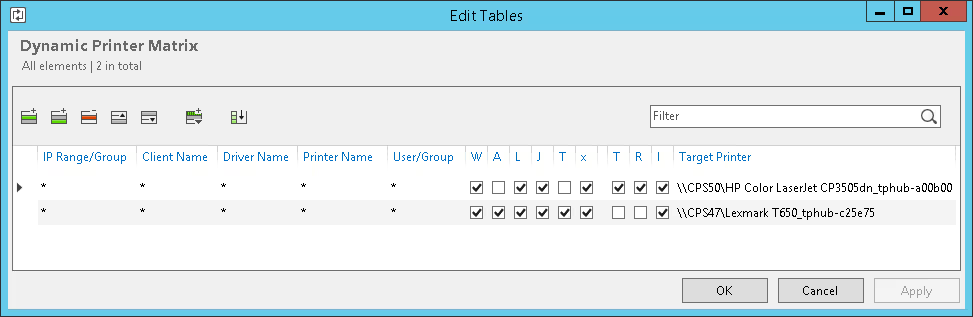
When compared with the Dynamic Printer Matrix, the Map Additional Printers table can be used to connect any network printers (shares on the print server), even if you don’t have ThinPrint Clients or a print server with ThinPrint Engine in use. This makes this printer mapping table particularly helpful for scenarios where printing from tablets, thin, or zero clients is required.
How AutoConnect maps your printers
To auto-deplay printers, AutoConnect works through the name translation table from top to bottom. If all criteria in a row for the first printer are matched, AutoConnect searches for the corresponding share (column target printer) and connects to this printer share. When an employee logs on to a remote computer, the service checks the printer list and printer properties of the client printers and provides them to the user in the session.
Why ThinPrint’s printer mapping
- Automatic printer assignment: Save time and effort when creating and assigning printers.
- Always the right printer: All employees automatically get access to the right printer, at any location and from any device.
- Smooth auto-deployment of printers for any scenario: The name translation table makes deploying network printers and local printers depending on clients, users, locations or connections so much easier.
- The right default printer for every remote desktop session: ThinPrint saves user-specific settings such as the default printer selection and printer properties, either in the user profile or centrally, so that the right printer is guaranteed to be set as the default for each new session logon.
- Printer mapping software with Printer Self Service for users: The IT department can set with AutoConnect whether users are allowed to manage their printers themselves by means of Printer Self Service. This is a very practical way of making printers available to users, allowing them to find the right printer for their needs without any additional assistance and to connecting them with just one click.
- Easy setup: ThinPrint AutoConnect can be conveniently configured in the MMC or for large environments by group policies.
Frequently Asked Questions
Printer mapping is the process of automatically connecting users to the right printers within a corporate network — without requiring manual setup or IT intervention whenever someone changes location, device, or working environment. When an employee logs on to a computer, virtual desktop, or remote session, the correct printers are already available, with assignment based on defined rules such as location, team, or device. This is especially valuable for organizations with employees across multiple sites, remote or hybrid workers connecting via VPN or remote desktop, mixed device fleets, or high staff turnover and flexible seating, where printer assignments need to update automatically. Without a dedicated solution, IT teams often rely on time-consuming, error-prone Group Policy Objects or manual installations. A modern printer mapping tool automates this process, reduces administrative overhead, and ensures every user always has access to the right printer at the right time.
Traditional printer mapping via Windows Group Policy Objects (GPOs) works in small, homogeneous environments but quickly becomes unmanageable at scale. It requires extensive manual administration and significantly slows down the user login process. ThinPrint AutoConnect replaces this approach with a rule-based, dynamic system: the Dynamic Printer Matrix automatically assigns printers based on Active Directory user or group names, client IP addresses, IP ranges, host names, or printer groups — with no login delays and no manual intervention required.
Yes. ThinPrint AutoConnect includes an optional Printer Self Service feature that allows IT administrators to grant end users the ability to manage their own printer connections — without requiring IT support. Users can independently browse available printers, select the one that fits their needs, and connect with a single click. This reduces helpdesk tickets, speeds up onboarding, and gives employees greater flexibility — especially in dynamic work environments with multiple locations or frequent device changes.
ThinPrint AutoConnect is installed as a Windows service on terminal servers, workstations, or virtual desktops. When a user logs on to a remote or virtual session, AutoConnect processes its name translation table from top to bottom. Once all criteria in a row are matched, it automatically connects the user to the correct printer share. User-specific settings — including the default printer and printer properties — are saved either in the user profile or centrally, ensuring the right default printer is set at every new session logon. This makes it the ideal solution for Citrix, RDS, and VDI environments.
Printer Assignment Made Easy
This white paper shows you how to ensure that all your employees always have the right printers available with minimal effort.