New ThinPrint Hub Finder for Mac Now Available
Find ThinPrint Hubs on your network, check device information, and open their configuration interface directly: the new ThinPrint Hub Finder for Mac now makes this possible on macOS. It simplifies hub setup and management for IT teams and partners – from the initial connection to ongoing support.
Which IP address was assigned to the newly connected hub? Which entry in the device list corresponds to which physical hub on site? Hub Finder helps you answer these questions quickly, without having to manually match network addresses against DHCP lists or device labels.
ThinPrint Hub at a Glance
ThinPrint Hub connects printers in branch offices and remote locations to a company’s central printing infrastructure. Together with ThinPrint Engine, this compact device enables centrally managed printing – without local print servers or a VPN connection for printing. Print jobs are compressed and transmitted securely to the hub using encryption via the ThinPrint Secure Tunnel.
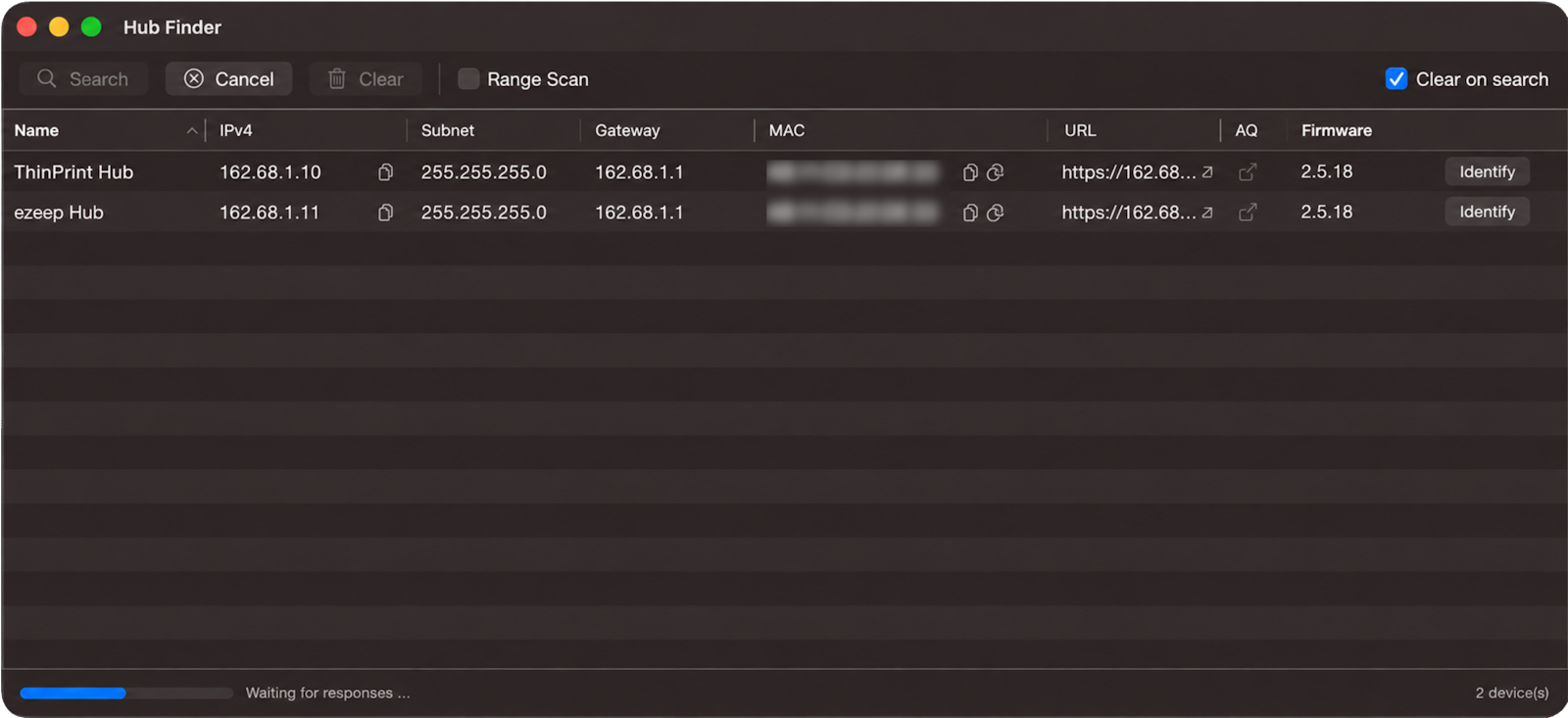
ThinPrint Hub Finder helps you quickly locate the right device on the network and access its settings.
ThinPrint Hub Finder: Find, Check, and Configure Your Hubs
Hub Finder for Mac searches for ThinPrint and ezeep Hubs and displays discovered devices in a clear, organized list. Automatic discovery detects hubs on the local subnet. You can also scan a specific IP address range.
The following features support setup, maintenance, and troubleshooting:
- View device information: Check the name, IP address, subnet, gateway, MAC address, and firmware version at a glance.
- Open the web console: Access the configuration interface directly from the results list without manually entering the IP address in your browser.
- Identify a hub on site: Make the selected device’s LED blink – particularly useful when several hubs are positioned next to each other.
- Copy the MAC address: Copy the device address with or without colons for use in other management tasks.
Administrators can locate a newly connected hub, identify the physical device, and configure it. They can also check key device information directly from their Mac when handling support requests.
Manage Hubs Across Locations with ezeep
For companies with multiple locations, the cloud-based ezeep Management Console complements local device discovery. It enables centralized management of connected ThinPrint Hubs and provides access to their configuration interfaces.
The two tools serve different purposes: Hub Finder helps you discover and identify devices on the network. The ezeep Management Console provides a central point of access for managing your connected hubs across locations.
Learn how to manage your ThinPrint Hubs centrally using the ezeep Management Console.
Get Started on Your Mac
Download ThinPrint Hub Finder for Mac from the Mac App Store and find your hubs directly from your Mac.
Frequently Asked Questions
ThinPrint Hub Finder is a tool for discovering ThinPrint and ezeep Hubs on your network. It displays discovered devices along with key network and device information and lets you open their web consoles directly.
Yes. The IP range scan lets you search a specific range of IP addresses. The devices must be reachable from your Mac. Routing and firewall rules may affect discovery.
Check that the hub is powered on and connected to the network. For automatic discovery, your Mac and the hub should be on the same subnet. Otherwise, use the IP range scan and check that the target network is reachable.
No. Hub Finder helps you discover devices, view information, and open the web console. Configuration is still performed in the web console.
More posts
ThinPrint Client 13 Now Also Available for Windows ARM64